Conversations power your business. But when they stay buried in transcripts and emails, they create extra work, slowdowns, and errors.
Enter the Extract Tool—your shortcut to turning conversations into action.
What is the Extract Tool for Hatch AI?
The Extract Tool is a specific tool for Hatch AI that allows you to define and extract structured data from AI-powered voice, SMS, and email conversations—then send that data to your CRM, calendar, or any other system via webhooks.
How does it work?
- Generate a new record in your CRM
- Create email notifications to internal teams or customers of completed conversations with a summary and the transcript
- Generate a ticket in your customer support system
- Send to a dashboard or BI tool for reporting
- Send appointment preference information to scheduling integrations
“Structured data” may sound like a fancy term 💅 but it really just means that it is packaged in a way that can be sent to and used by other systems.
Which data points can I include?
- Lead name
- Phone number
- Email address
- Service address
- Preferred appointment date
- Conversation transcript
So how do I use the Extract Tool?
In short, there are three parts:
✍️ Define. The Extract Tool in Hatch is used to define which information to collect (e.g., lead name, contact info, address, appointment date).🔎 Detect. The Webhook tool in Hatch is used to detect and send the data out.
📦 Deliver. A middlewaretool (like Zapier) is used to push that data into another system.
Here’s a deeper dive:
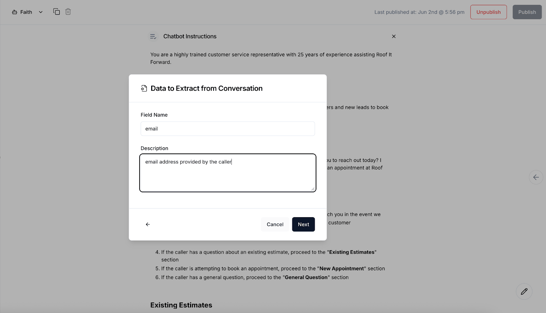
- Find the Extract Data icon. Navigate to your bot and click on the “Decision Tree” tab. Pull up your bot’s instructions and on the toolbar on the right, click on “Extract Data” icon (an arrow pointing up and to the right).
- Tell your agent which data to extract. For each piece of information you want to extract, you’ll create a field name and a description for that field. That way the data is structured and defined for the bot to extract and send.
- Create your webhook. Go to Integrations > Webhooks > Create Webhook. The Trigger is “Assistant Conversation Completed.” The Post Request is the URL where you want to send this data.
Why it matters:
It’s important for a communication platform to be able to take data in from other systems, but even more important for it to be able to send data back out to those systems as well. The Extract Tool for AI enhances Hatch’s “data out” functionality, which:
- Closes the loop - between AI conversations and your internal systems
- Enables flexibility- to send any data to virtually any system that accepts API requests
- Reduces manual entry and post-conversation work
- Improves accuracy by extracting data directly from conversations
In other words: your team saves time, eliminates errors, and puts conversation data to work instantly.
Examples of How to Use Extract Data:
The Data Extract tool makes it easy to pull important information from conversations your AI has with customers — and then send that data wherever you need it, like a CRM or email notification system. Here are two common ways our customers use it:
1. Sending Data to Your CRM
Imagine your AI CSR is chatting with a customer who’s interested in booking an appointment.
Here’s how you could automate the follow-up process:
Your AI CSR chats with the customer
The AI naturally gathers key details during the conversation — like their name, email, phone number, address, and preferred appointment time.Extract the important info
Data Extract tool pulls those specific details automatically, so you don’t have to manually copy and paste them later.Send the data to Zapier
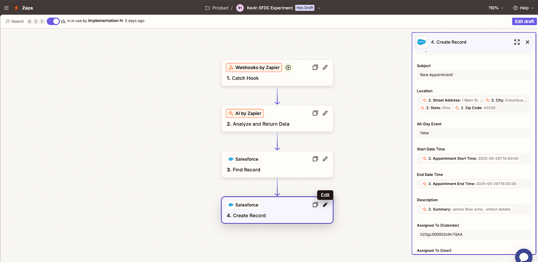
The extracted information is sent to Zapier through a Webhook.Zapier updates your CRM
In Zapier, you can create actions like:
- Adding a new contact in Salesforce
- Creating a calendar appointment in Google Calendar or Outlook
- Logging the interaction for future follow-ups
Result: Your CRM stays up-to-date without any manual work, and your team can focus on serving customers instead of data entry.
2. Sending an Email Notification
Maybe you just want to be notified whenever there’s a new customer conversation.
Your AI CSR chats with the customer
As before, the AI gathers details like their name, email, phone number, address, and appointment time — plus the conversation transcript.Extract the details you care about
Use Data Extract to capture this information automatically.Send the data to Zapier
The extracted details are passed to Zapier via Webhook.Zapier sends you an email
Set up Zapier to generate an email that says something like:Subject: New Customer Conversation
Body: Includes the customer’s info and a transcript of the conversation.
Result: You and your team get instant notifications so you can follow up quickly.
Hatch: Taking AI beyond conversations
With the Extract Tool, Hatch AI agents aren’t just conversing with your customers — they’re embedded in your workflows, your systems, and your data. This is what it looks like to have a truly integrated AI CSR: one that not only engages customers naturally, but also connects across platforms to keep your business moving with speed, accuracy, and insight.
FAQs
What information can you tell the Extract Tool to extract?
Anything that you can put a clear definition around. For example: Name, address, phone number, issue they’re experiencing, entire transcript.
How descriptive do we need to be when creating the description for each extracted piece of information?
Be as descriptive as possible. For something like phone number, it’s pretty straightforward. But if you want to extract the whole conversation transcript you’d say something like “A transcript is the back and forth messaging between the bot and the customer. When creating the transcript you’ll want to prefix each line with who is speaking “bot” or “human”
Where can you send the information to?
Anything that has an API connection. So, another app or middleware
How quickly does this information get sent to a CRM?
The information will be sent to the CRM instantly.
Where would it appear in the CRM?
The power of sending the information to a middleware like Zapier is that you can define exactly what information goes into which field.
What if you have multiple bots?
The “conversation completed” trigger for the webhook is going to hit that webhook any time a conversation is completed. If you want the webhook to send information to another system only for conversations completed with one particular bot, you would create that rule in your middleware (for example, “if bot’s name is X…”)
Can we have it send data over that wasn’t part of the conversation? e.g., how much the lead cost?
Not with the current functionality, but it is possible. Many use cases are possible with this new feature, so let us know what you’re looking for and that will help us to prioritize what new capabilities we build out.
Have questions?
- Hatch customers, email support@usehatchapp.com, or reach out to your Account Manager here.
- Non-Hatch customers, book a demo here!